The Best of Blender 5.0 - Colour Me Crazy
- Ava Obrien
- Dec 26, 2025
- 3 min read

It's here! Blender 5.0! Blender has taken a bright, bold bounce into colour management. This new pipeline now natively supports Wide-gamut and HDR colour spaces. Wait, what on earth does that mean?
This means:
Blender 5.0 can now display colours outside of the traditional
sRGB range. This means reds, blues and greens will become more vibrant in both images and videos!
Users who need to edit and adjust colours after rendering more accurately, allowing for a closer cinematic feel.
Without proper colour management, sRGB content displayed on a wide-gamut monitor may appear oversaturated and unnatural because the screen expands limited colour data to fit a larger colour space.

Image credit to Blender.org
Okay, and the HDR part?
HDR (High Dynamic Range) creates a detailed and realistic picture by capturing a wider range of brightness and colours than a standard display (Standard Dynamic Range aka SDR). This means deeper blacks, brighter whites and richer colours. There will also be more detail in both bright and dark areas.

Image credit to Jacob Blount November 30, 2018 - HomeAV News, rAVe [PUBS]
So Blender can now make your renders and animations look prettier!
Aces 2.0 and 1.3 views as a substitute to AgX and Filmic and are compatible with both standard and HDR ACES pipelines. You can learn more here. Rec.2100-PQ and Rec.2100-HLG displays can also be used for colour grading for HDR video export.
You may find yourself calmly asking...
AAAAAAA! WAIT! WHAT DO THESE NUMBERS MEAN?!!! R2D2 .1.3?!
First of all, calm down. I'll explain that. Don't worry, I didn't know what all that meant either when I first saw it. Let's break it down.
Don't worry, this beast's name stands for something: Academy Colour Encoding System. The numbers "1.3" and "2.0" refer to the version releases themselves. just like Blender has the newest version (5.0)
So why are there 2 versions?
I'm sure you can guess the answer to this, but I will tell you anyway. It's due to compatibility! Blender included both ACES 1.3 and ACES 2.0 to ensure compatibility with existing pipelines and respect the ongoing industry transition between these standards, rather than forcing a single choice on its users. It allows Blender users to adapt to industry standards wich helps them migrate to different software easily in the future.
Here is an easier way to think about it:
Blender 5.0 is like a new employee who shows up to a major corporation and is not only good at one skill (ACES 2.0) but is also just as good at another. In the version all the existing projects and senior departments still use (ACES 1.3). This makes them instantly valuable and compatible with everyone from day one. So Blender 5.0 can work with both newer projects and older ones. While the newer ACES 2.0 offers improvements, many projects and studios still rely on the older 1.3 version.
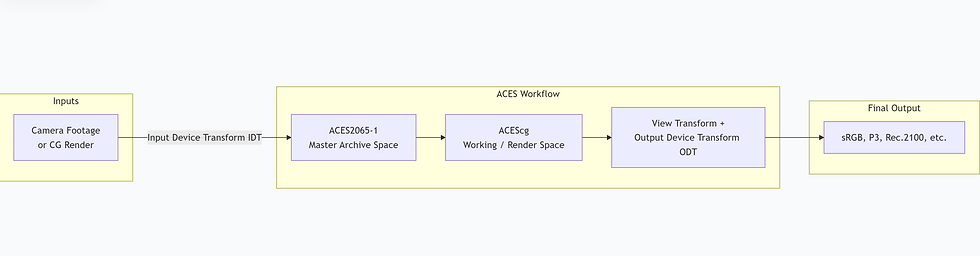
Here is a diagram explaining the ACES workflow:
How do I set this up then?
Go to your properties editor > Scene > Colour Management.
We can set a custom working space for each file and sequencer.

If you have already rendered your image, don't worry! you can alternatively, we can use the convert colourspace node in the compositor.

Quick disclaimer! make sure everyone is on the same page as to what version they are using for their colour management! Not checking everyone's settings could affect your project's final look.
For those who are fans of the sky node, it now has the power to support multiple scattering, which gives a more realistic sky. what is great is that it works well for indoor scenes as well!
Thank you all for reading!
Have a lovely Boxing Day, everyone!
26th Dec, 2025
Ava O'Brien


Comments